Building and Maintaining Mailing Lists
Overview
Although it might be a bit of work at first, building & organising your own contacts is incredibly valuable as you'll end up with a list of all the relevant tastemakers in your scene and can then quickly & easily send all of your future releases to them with just a few clicks. This page details some of the ways you can build and manage your industry contacts (DJs, radio stations, playlist curators, press etc).
Mailing List Invite Links
These let people easily subscribe to your list via a simple link. They are the easiest way to get new subscribers to your mailing lists.
To get your invite link, just select a Mailing List then click the three dots menu and click "Get invite link". Send this link to anyone you want to subscribe to your list. Note: they work great in messenger apps too and are an easy way build a solid, consent-based mailing list.
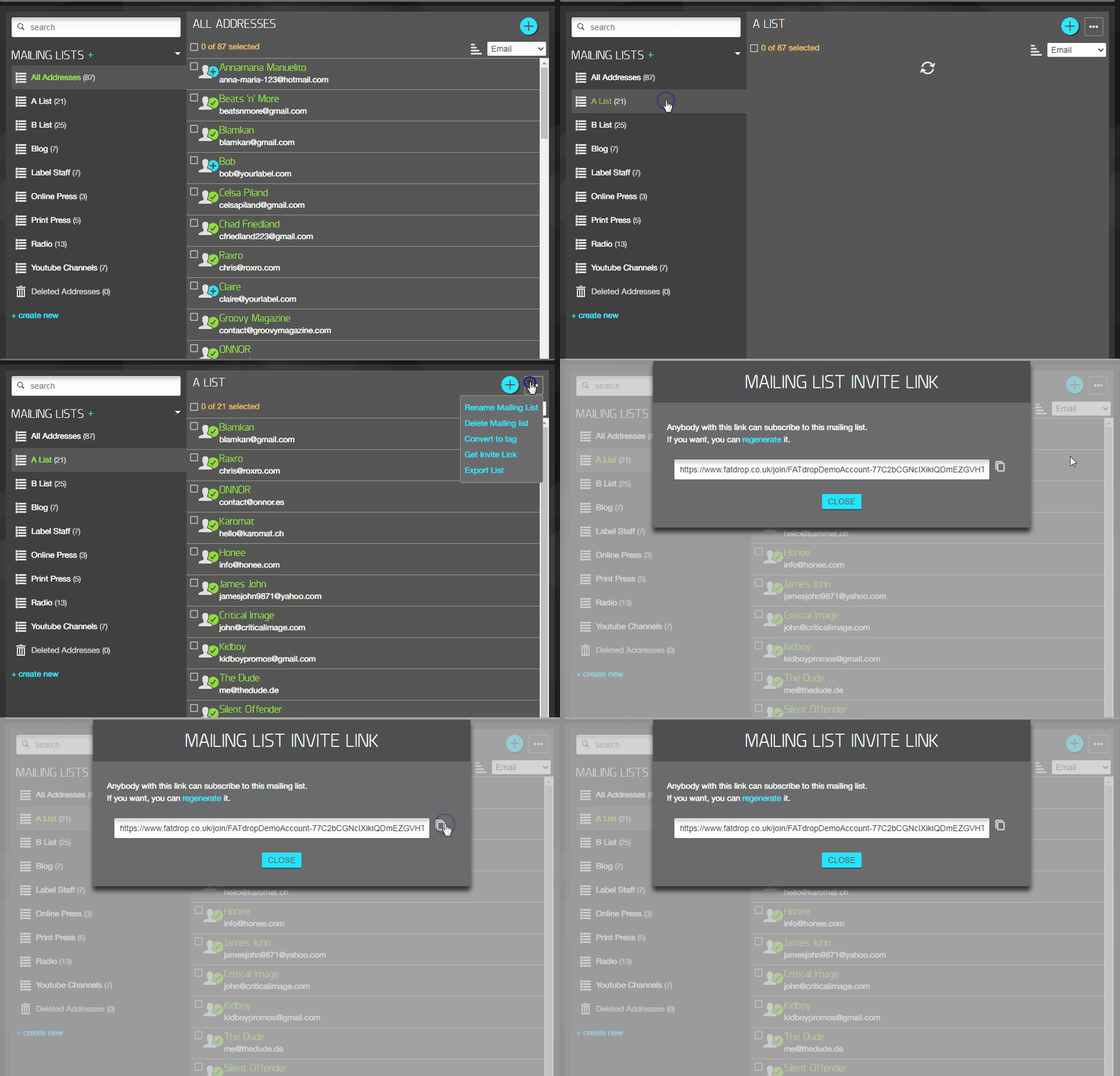
When someone clicks on a mailing list invite link, they get an easy way to join your list.

Importing contacts in CSV files
CSV (Comma Separated Values) is a standard format for storing data in a text file. In these files each entry is stored on a new line and each field is separated by a comma. They can be useful for transferring information from spreadsheets - for example, you may have a spreadsheet which contains a list of email addresses in one column, with the email display names listed in the next column. If you exported this as a CSV, the result text file might look like this:
<someone@yahoo.com>, "Someone"
   <someone.else@gmail.com>, "Someone Else"
   <another.person@hotmail.com>, "Another Person"
This data can then be imported into FATdrop's mailing list system rather than typing it all in manually.
The input box for emails on FATdrop accepts email separated by commas, line-breaks, or a combination of both. If you export your Mailing List emails to a CSV file and open it in Excel or a similar spreadsheet application, you will be able to highlight the column containing the email addresses and then cut and paste them straight into FATdrop. The system will then auto-populate Name, Venue and Website from the information added by recipients when they receive FATdrop promos. You could also click 'Import Contacts File' to transfer all the data from the CSV file to FATdrop's mailing list.
Opt-In Emails
When adding addresses manually or by uploading a CSV, you have the option to either send your recipients an opt-in email. We ask you to first send opt-in invites if you aren't sure your contacts want to receive your promos. If they are people you already have permission to send your pre-release music to, you can add them without invite and start sending to them immediately. See our Anti-Spam Policy for further details.
Editing the Opt-In Email text
You can edit the text in your opt-in invitation emails when inviting people to join your list. Simply go to your Mailing Lists page, add some new addresses, then enter the text you'd like to send to them when you're sending the invitations.
Sending to invited recipients
Once you have invited someone to join your list, you will not be able to send to them directly through FATdrop until they have accepted the invitation. This feature is required for us to comply with the international regulations and guidelines on permission-based email sending.
What you can do, however, is send to them from your own email client using the 'Grant Access' feature. Promos sent this way will still have all the usual FATdrop features (feedback, security etc). On the campaign send page, after adding any of the addresses which have not yet accepted your invitation, a box will appear along with the message "grant access to xx recipients". If this box is ticked then when you click send, a pop-out will appear with the email addresses of all these recipients and the promo text of the campaign (including a link to the promo). If you paste these addresses into the bcc field in your own email client and the text into the body then you can still send the promo this way.
When the recipient clicks the link, after verifying their email for security they will access your promo and automatically be subscribed to your mailing list.
Other ways to build your mailing lists
- Identify people that should be on your lists. DJs, press, radio show hosts and send them DMs or emails with an invite link
- Create a list called "New contacts" and get the invite link. Post it on Social Media to give your followers a way to subscribe
- Import your Bandcamp lists. If you sell through Bandcamp, you probably already have a list of contacts in there that you can send to
Can I use FATdrop without my own contacts?
Yes, absolutely. For that you can use Boost which lets you send your promos to eligible DJs, radio & press that are already in the system.
Can I use a list I bought or was given by someone else?
No. The sending of unsolicited bulk email (or SPAM) is strictly prohibited on the FATdrop system. Users of FATdrop are only permitted to use the system to send opt-in marketing. That means that all addresses on a mailing list must either be recent customers (or have had dealings recently) with the company sending the emails, or have accepted one of our opt-in invitations. See our Anti-Spam Policy for more info.