Audio & File Management
Introduction
File management is done via the File Page. Here you can:
- Upload, rename and delete files
- Organise files in folders
- Search for files
- Monitor used disk space
- Tag audio with meta data and images
- Preview packshots
Uploading Files
Audio formats: WAV, FLAC, AIF and MP3
FATdrop supports WAV, FLAC, AIFF and MP3 music file formats.
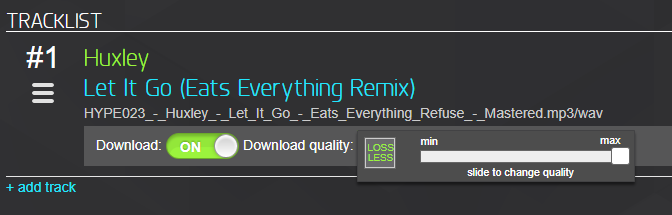
The system automatically re-encodes an otimised streaming file, and you can choose the maximum quality available for download. If you upload lossless files then by default your recipients will have the choice between WAV, AIFF, FLAC or 320kbps MP3. Alternatively, in the tracklist section of the campaign creator, you can select MP3 & choose the bitrate by clicking the green box with the encoding and moving the slider to select the desired quality. If you upload MP3s then only MP3s will be available for download.
Because some audio player software does not properly support high-definition 24-bit WAV files, for maximum player compatibility we recommend WAV files be limited to 16-bit audio.
FATdrop also supports a range of 'other' file formats, including PDF, ZIP, RAR, MOV, and AVI. So you can add, for example; press releases, videos, artwork and anything else you need people to see, all in one promo package.
Packshots
The dimensions for promo packshots are:
230x230px 72dpi RGB, .jpg or .gif format. Images of the wrong size will be automatically resized.
Other files
You can attach any of the following types of file to your promos:
Audio
MP3, WAV, AIF, AIFF, FLAC
Images
TIFF, JPG, GIF, PNG
Documents
PDF, TXT, DOC, RTF, SXW, ODT
Movies
AVI, MPG, MPEG, MOV, QT
Tagging audio
Clicking on any audio file opens a metadata editor for that file. Here you can add: Title, Artist, Album, Publisher / Label, Copyright, Year, ISRC Code, Genre, Track #, Comment and a cover image. These tags will be written to the file so they appear correctly in all major DJ software (Traktor, Serato, Rekordbox) and players on OSX and Windows.
We recommend completing your ID3 tags in full, but at the very least you should fill in the Track and Artist names. Adding the email address of the sender in the Comments section is also recommended.
Note: You can also edit audio metadata when creatign a campaign directly within the campaign creator. After adding a track to the tracklist section, click the pencil on the right hand side to do that.
Folder Management
You can drag one or more files to folders to change their location. To drag multiple files, first select the files you want to move by clicking their checkboxes then dragging them to a folder in the left column.
Renaming Files and folders
To rename a file, click on the file in the second column. Its meta data will open in the third colum. Click on the name of the file to edit it.
To rename a folder, click on the folder name in the first column, then click on its name in the second column to rename it.
Audio Auto-Fix upload policy
When this option is selected in your audio settings, we will automatically fix a number of potential problems with your uploaded files. We scan and fix various issues including: MP3 frame inconsistencies, incorrect file extensions, large or badly embedded images in MP3s.
The Auto-Fix upload policy is turned on for all accounts by default. You can turn it off, in which case we will leave your files exactly as they are when you upload them. Please be aware that Note: We do not recommend turning off this feature. We cannot offer technical support to fix files which have problems once uploaded with auto-fix turned off.