Sending Campaigns
- Sending Campaigns
- How do I send my Campaign?
- Scheduled Sending
- Change the email address your promos are sent from
- Send Campaigns from your own email client
- Public Links
- Your Company Page
- Re-sending Campaigns
- Ensuring you don't double send to anyone
- Sending a promo to more than 1000 recipients
- Why are some of my recipients blocked from sending to?
- Once a Recipient is blocked, is there any way that I can send them promos or subscribe them to my list?
How do I send my Campaign?
Sending A Campaign Video (part 1)
Sending A Campaign Video (Part 2)
First, visit your Campaigns page and click "send" for the appropriate Campaign. This will take you to the "Send" page. You can type email addresses manually into the "To" box or you can add email addresses from your existing mailing lists using the "show mailing lists" menu.
Option 1: Enter addresses manually
Simply start typing a name or address into the To" field and an auto-complete box will pop up for you to choose the correct address from. To remove email addresses, click the "x" next to their email address. Once the address is entered it will display green if it is a valid address and pink if not.
Option 2: Enter addresses from your contacts
Click the down arrow on the right to expand the mailing list to view its contacts. Check the white box on the left to select everyone on that list and add them to receive the Campaign. Click around the white box to use the filters which will allow you to choose who to send to based on statuses of the recipients.
Sending the campaign
Once your recipients are correctly entered, you can review your Campaign Email. You can edit both the subject and the main content of the email. Simply click the text to make any changes.
Please note: FATdrop operates a strict anti-spam policy. Please ensure you have permission to send emails to the addresses. If you're not sure, first send an invitation to join your list.
Scheduled Sending
You can schedule a send up to 90 days in advance. To do this, click "Schedule" on the campaign send page and pick a date and time that you want the campaign to be sent. Note that times are in the local timezone that your computer is set to.
Any campaigns that have scheduled sends will show a calendar icon on them. To edit a scheduled send click the calendar icon.
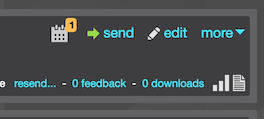
Credits are deducted on the scheduled send date (not when scheduling). If you don't have enough credits at send time, we'll send to as many recipients as your remaining credits allow.
Note that Scheduled sends are NOT sent to people who have already opened the promo.
Change the email address your promos are sent from
To change the 'From' details of your e-mail settings, go to Account > Settings > Campaigns and in the 'Campaign Emails' section of the page, change the details as desired and click 'Save'.
Additionally, each user with access to sending promos can set their own "reply-to" email address. To set this go to Account > Settings > You > and choose "Use my email address as the Reply-to: address" (Premiere users and above have to first select "Use custom email settings for campaigns I send" before this option will appear) .
Premiere plans and above additionally include a fully customisable email option, meaning Promo Campaigns sent through FATdrop can still be sent from your own email address. This option is available and customisable for all users with access to sending promos from your account, allowing a more personalised approach to your promos in your recipients' inboxes.
To set this up go to Account > Settings > You and under 'Sending Promo Emails' option, select 'Use custom email settings for Campaigns I send'. Here you can set up a new email address ('Use fully customised email settings'). If you select this option you will be presented with an 'add new' button, and upon clicking this you can input the name and email address you wish to use. Please note this email address will have to be verified.
These changes only relate to the logged in user. If multiple users all wish to send from the same address (for example - promos@yourrecordlabelname.com) they would all need access to this email account in order to verify each user.
Send Campaigns from your own email client
Go to the Campaigns page and choose the "Manage Access" option from the "more" drop down menu for the Campaign you wish to send.
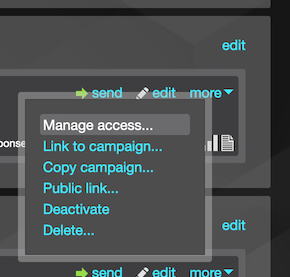
Click "Add Recipients" and select the people you wish to send the Campaign to, using the filters to assist you.
This will then be shown a dialog with email addresses and text to paste into your own email client. When sending bulk emails make sure you use the bcc: field and not the cc: field or you will be sharing your list with all your contacts!
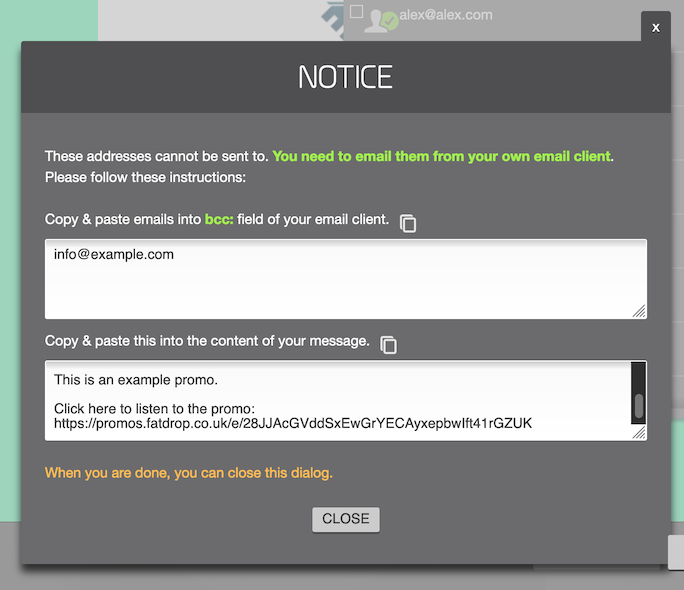
Sending in this way retains the benefit of FATdrop's security, reporting and analysis. You can also send to recipients who have been blocked due to having not responded to three invites or initial promos. If they choose to access the promo through a manual link, they will automatically become subscribed to your mailing list.
If you accidentally add someone who you would rather not have access to this promo, or if you want to revoke access for whatever reason, you can tick the appropriate addresses and select "block access" from the drop down menu at the bottom, and click on "DO IT" to revoke their access.
Public Links
These links are useful in situations where you want to share the promo with someone whose email address you don't know, or if you just want to make it as easy as possible for them to access the promo (public links just work for anyone who has the link, they don't have to login to FATdrop and they do not share all of the enhanced security features such as watermarking and anti-Share that normal promos have.
To send a public link, click the 'more' drop down menu next to the campaign on the campaigns page of your account. From here you will see an option to generate a public link.
Public links use credits for each unique person who opens the promo (one credit per track). You can optionally set a maximum credit cap for the link; once reached, the link will show as unavailable until you raise the cap or add credits. For details, see Billing.
Once created it is possible to delete a public link so it is no longer usable to access a campaign. To do this you need to go to "manage access" from the 'more' menu of a particular campaign and from here you will see the option to 'delete link' on the right hand side.
Your Company Page
Another option is to send your recipients a link to your Company Page. This is accessed and styled the same as the the recipient dashboard but it is filtered to show only promos sent from your account.
You can find the link to your Company Page under the campaigns tab under "Your Promos". Note: Normal FATdrop security applies to this link and recipients may be asked to verify their email as a security measure.
Re-sending Campaigns
Go to your Campaigns Page and for any campaign which you have already sent but where not all recipients opened the promo, a "resend" button will appear next to the number of "no responses". Click on "resend" and use the 'filters' drop down menu to select which groups you wish to receive the promo again. If an address has a green tick next to it, it means they have already been sent the campaign. The different filters work as follows:
- Everyone - selects all recipients again.
- Promo Received - selects recipients who have listened to the promo.
- Emails Opened - selects recipients who have opened the email but not listened to the promo yet.
- No Response - selects recipients who have not opened the email (This includes sent, bounced and deferred statuses).
You can also:
- Combine the filters to send to a mix of the above
- Enter new email addresses, which will be stored to your Mailing Lists
- Adjust the subject and email text before sending.
- Select/Remove individual addresses by clicking on the "x" next to their email address.
Ensuring you don't double send to anyone
In some cases you might want to make sure you're not double sending to anyone who has already received a given promo. For example, you might have already sent to one list at an earlier date, and now want to send to a second list which has some overlap with the first. Another example could be that you want to send to a list with more than 1000 recipients in so have to go back and send to that same list again (see the entry below if this is the case).
To make sure you don't send the promo to anyone twice, you can use the 'never sent to' option. After clicking 'show mailing lists' on the send page, instead of just ticking the box next to the list you want to add - click the drop-down arrow next to the box and choose "never sent to". This will only add the people on that list that haven't yet been sent the promo to the send box.
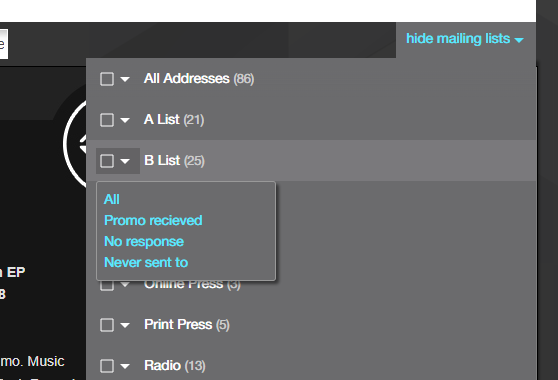
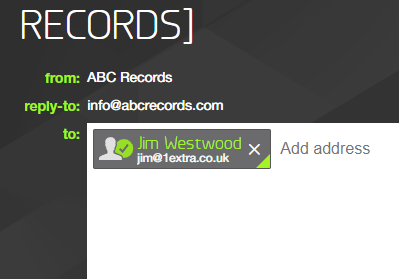
Note: anyone who has already been sent the promo will have a green corner in the bottom right next to their name in the send box. So if you want to double check you've used 'never sent to' correctly, you can scan the send box and make sure you don't see any green corners.
Sending a promo to more than 1000 recipients
If you've tried to add a list with more than 1000 recipients in to the send box, you'll have noticed you can only send to 1000 at a time. Don't worry though, you can still use the 'never sent to' option to send to the full list.
First, go to the send page for the campaign, open the mailing lists widget and tick the box next to whichever list you want to send to. It will add the first 1000 people on that list to the send box. Scroll down and click send.
You'll now be taken back to the campaigns page while the promo is sent. Wait until it finishes sending to those first 1000 (when it's done the campaigns page will refresh), then you'll be able to head back to the send page again. This time though, instead of just ticking the box next to the list you want to add - click the drop-down arrow next to the box and choose "never sent to". This will only add the people on that list that haven't yet been sent the promo to the send box.
You can now scroll down and send to the next 1000 this way, and if necessary repeat until you've sent to everyone you want to send to.
Why are some of my recipients blocked from sending to?
If a Recipient fails to either click-though on one of the first three promo Campaigns that you've sent them or fails to respond to three Opt-In subscription invitations then FATdrop will automatically block their email address. This feature is required for us to comply with the international regulations and guidelines on permission-based email sending.
To see how to send promos to these recipients anyway and/or how to get them subscribed, click here.
As long as they remain on one of your Mailing Lists, your Recipients can easily verify their subscription in their Recipient Dashboard.
Alternatively, you can grant access to blocked Recipients and then send them the a link to the Campaign from your own email client. More info on that here.
Once a Recipient is blocked, is there any way that I can send them promos or subscribe them to my list?
If a recipient accesses one of your promos then they will automatically become subscribed to your mailing list. The easiest way to do get them to do this - and the way that allows you to continue to mail your latest promos to blocked recipients - is to use the grant access function.
On the campaign send page, after adding any blocked addresses to a send, a box will appear along with the message "grant access to xx recipients".

If this box is ticked then when you click send, a pop-out will appear with the email addresses of all the blocked recipients and the promo text of the campaign (including a link to the promo).
If you paste these addresses into the bcc field in your own email client and the text into the body then you can still send the promo this way.
When the recipient clicks the link, after verifying their email for security they will access your promo and automatically be subscribed to your mailing list. Sending the promo this way has all the same features as a normal FATdrop promo e.g feedback, security etc.
Alternatively, you could advise blocked recipients to find one of the earlier opt in invitations/promo sends in their inbox and access one of those. They can also become subscribed by accessing their Recipient Dashboard and either clicking on one of your promos or going to their subscriptions page and manually subscribing to your account.