Campaign Reports
Introduction
FATdrop will provide a basic summary of statistics as well as specific data regarding:
- Email Statuses (Sent, Opened, Received, Deferred, Bounced, Expired)
- Promo Statuses (Opened, Downloaded)
- Recipient Feedback (including favourite track and rating out of 5)
- Recipient Location (viewable as a 'zoom friendly' world map*)
- IP Addresses (for additional security)
The data is presented in chart and graph form and is also available as a PDF or CSV. We also have a Google Sheets add-on which allows you to import the data straight into Google Sheets, meaning you can make your own custom charts & graphs if you'd prefer.
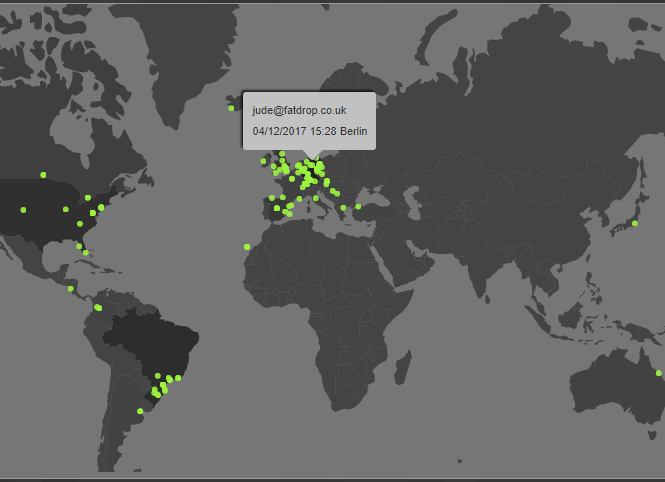
*Recipient Location is based on the user IP address and may not be 100% accurate
'Sent Emails' report
Sent means the email has been safely sent from our mail server to the destination server. If your promo has not been received, it is most likely a problem on your recipient's side (eg. it has not been downloaded from their mail server or it has been caught in some sort of spam filter)
Opened means the recipient has opened the email. This status is not 100% accurate. It will not work for people who have images turned off in their email client.
Received means the recipient has clicked the link in the email to listen to the promo (although will not necessarily have downloaded or left feedback).
Deferred emails are those that have neither been delivered nor rejected. The system will attempt to deliver your promo for up to 48 hours at which point, if it has still not been delivered, it will become Expired.
Expired emails have received no response after 48 hours of attempted delivery.
Bounced means the message could not be delivered. This could be for several reasons. Often the mailbox is full or the email address is no longer active.
'Promo Hits' report
All accounts include a World Map in the Campaign Reports. This is a new way of viewing your 'Promo Hits' information and lets you see where your promo has been received. This helps you tailor your promotion to allow more reach in certain territories and to gain greater campaign intelligence.
This map has a zoom feature which is used by holding the cursor above the map and using your scroll wheel. You can also navigate the map by clicking and dragging. Hovering over each user location provides you with the recipient's email address along with the date and time the promo was accessed.
This information can be included on your compiled reports by selecting Promo Hits from the options below 'What would you like in your report?'.
Please note: Location information is based on IP addresses and may not be accurate.
Live feedback pages
Live feedback pages are especially useful for clients who with to share feedback with the labels or artists they are doing promo for. It provides a "live" alernative to sending PDF reports.
Navigate to your Campaigns and click on the reports icon.
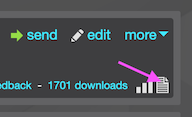
Then click on the "Feedback" tab of your reports.

The following dialog will appear:
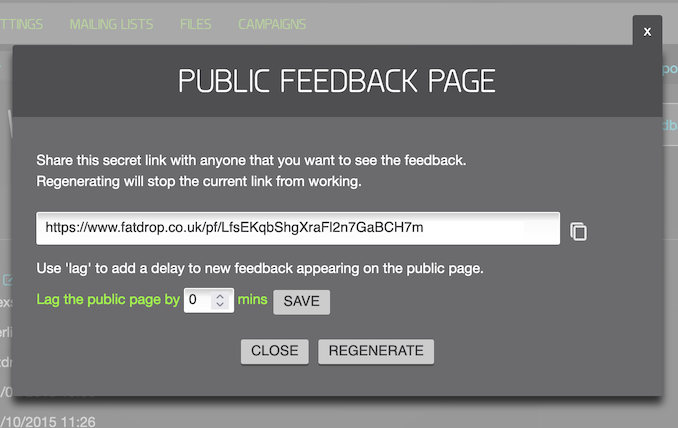
Simply copy the link and share it with your client. Note: the Lag feature provides a way to delay new feedback from appearing on the live feedback page. For example, if you lag the page by 60 mins, you then have a window of 60 mins to monitor new feedback coming in. This can be useful if you want to delete negative or sensitive feedback before your client sees it.
Google Sheets Add-On
The Google Sheets add-on lets you pull that data straight into a Google Docs spreadsheet. It's built for busy labels and PR companies to save time converting reports into your own custom format.
To use the Add-on:
- Open Google Sheets
- Click Add-ons > Get Add-ons
- Search for "FATdrop reports"
- Install the Add-on
- Enter your API key
- Select a campaign > Click Import
Contact support@fatdrop.co.uk if you don't already have an API key
Why are the 'sent' numbers in the reports different to on the campaigns page?
Our Campaign data has been designed to show you as accurate a picture of your campaign as possible.
On the Campaigns page, each campaign is listed by name. The summary in the bottom right section of the campaign panel aims to give you an overview of the total emails you have sent for this campaign including multiple sends to the same address (so one campaign sent to the same 100 people twice will show up as 200 sent).
When you click on the number of emails sent, you are taken to the Emails Sent reports tab for that campaign. The summary information on this page only takes into account unique email addresses. So a promo sent to the same 100 people twice will show as 100 sent on this page. This helps you see how many of the people you've sent to have responded, whereas the number on the campaigns page helps you see which promos you've already sent reminders for etc.
Additionally, the amount of feedback can appear different on these pages. The figure in the summary box on the Campaigns page displays the amount of feedback on the reports page, if any feedback has been deleted the figure will reflect that. The amount displayed on the sent emails page is the total amount and will include any deleted feedback.