Mailing Lists
- Mailing Lists
- Introduction
- Creating Mailing Lists
- Renaming and Deleting Mailing Lists
- Tags, Dynamic Tags and Campaign Tags
- Exporting Mailing Lists
- What do the different icons next to my recipients mean?
- I want to grant someone new to my Mailing List access to a large number of my promos, is there a quick way to do this?
- One of my Recipients has tried to resubscribe after following the promos.fatdrop.co.uk link but cannot see my Account Name in their Subscriptions Page. Why not?
Introduction
Your mailing lists are a crucial part of doing good pre-release promo. FATdrop provides a number of tools to manage your mailing lists and encourage high levels of quality engagement with your promo campaigns.
Creating Mailing Lists
Go to your Mailing Lists page and click the blue plus on the left hand side, next to the MAILING LISTS header.
Once you've created your new list you can begin to add email addresses. To do this, first click the blue plus in the top right and then either paste a list of addresses into the box, or alternatively click 'import contacts file' to upload a CSV. A third option is to click 'get invite link' and generate a link to join this mailing list and subscribe to your account, which you can then share manually with anyone you want.
Renaming and Deleting Mailing Lists
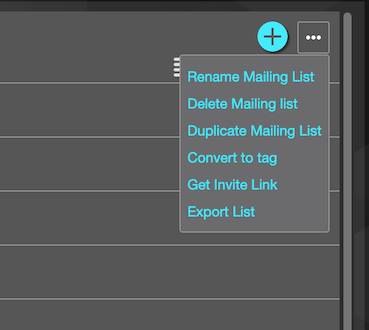
To rename or delete a mailing list, open the list and then click the 3 dots in the top right corner to open the menu for that list. You'll find the options in that menu.
Tags, Dynamic Tags and Campaign Tags
Tags provide a high level of flexibility when dealing with mailing lists. For example, you might organise your lists into categories like "Press", "Radio", "Blogs" etc and then have tags called things like "Berlin" or "John's Friends" or whatever. Recipients can be in multiple lists and have multiple tags, so this offers a simple way to segment your lists and keep your promo sending targetted. Click the Tags section in the left column of your mailing lists.
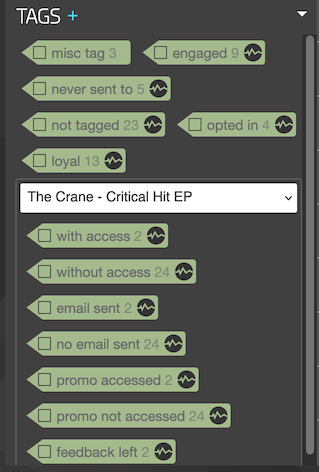
Any tags that have a pulse icon on them are Dynamic. That means you can't add to those tags. They are generated automatically to allow easy auto-segmentation. There are also campaign-specific tags, which can be really useful when sending. For example, you can send a campaign to a list of people that left feedback on a different campaign. Tags can provide really fine-grained control of your contacts and are worth investigating if you haven't already.
Exporting Mailing Lists
As your FATdrop Mailing List grows over time, there may be an occasion where you need to export your email database. You can export the email addresses from each mailing list to a CSV document. This is done one Mailing List at a time.
First, go to your Mailing Lists page and then select a specific Mailing List on the left hand side. Once in the list, click the 3 dots in the top right and then choose 'Export List'. This will email you that specific list as a CSV file.
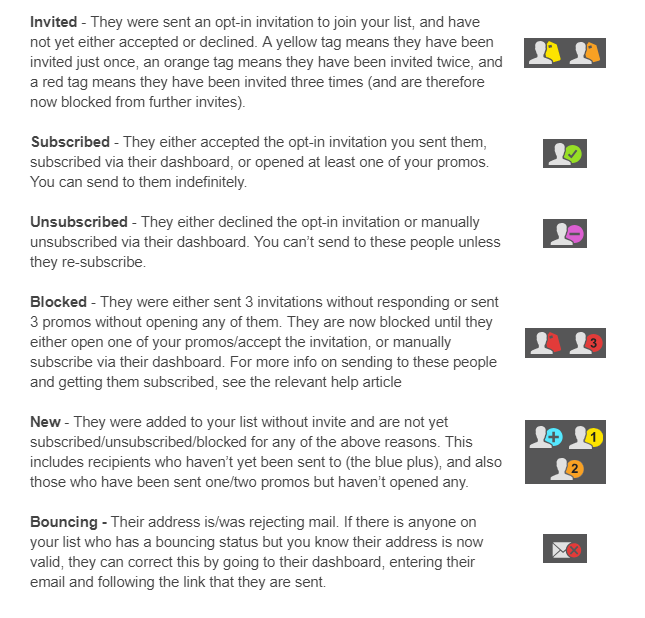
What do the different icons next to my recipients mean?
I want to grant someone new to my Mailing List access to a large number of my promos, is there a quick way to do this?
To do this, go to your mailing lists page and either find the recipient using the search box in the top left, or just going to the mailing list they're in and click on them. This will reveal the 'access' pane in the bottom right, which you can choose to grant them access to your campaigns. The next time the Recipient visits their dashboard they will now see all of the selected Campaigns.
One of my Recipients has tried to resubscribe after following the promos.fatdrop.co.uk link but cannot see my Account Name in their Subscriptions Page. Why not?
Check that the email address actually appears in your mailing lists and has not been deleted. If you have deleted them, you can go to the 'deleted addresses' folder and find them there, then click the 'undelete' button to move them back into your mailing lists.